An AI video editing agent takes footage you already have and makes changes you describe. It can find an answer in an interview, cut a pause, put shots in order, or add a caption. With AI-generated footage, it can also help several good takes feel like one scene. If the product changes shape between takes, the editor needs a different shot.
Which editing jobs can you hand over?
Most editors break the job into several decisions. A clip finder looks for usable moments in a longer recording. A transcript editor gives you a way to select spoken material and cut the footage around it. An agent that uses timeline-based video editing can also put the selected clips in order and leave you a sequence to adjust. Choose based on where you are spending time. Someone with a two-hour interview needs help finding one good answer. Someone with four approved shots may only need help putting them in order and checking the joins.
| Job | What you can delegate | What still needs a look | What to ask for in the handoff |
|---|---|---|---|
| Join AI-generated shots | Pick compatible takes and remove empty openings | Check whether the product, label, or motion changes at the cut | A timeline and a list of shots that need replacing. |
| Find highlights in a long recording | Suggest sections that cover the requested topic | Watch the sentences around each selection | Source timecodes and the surrounding transcript from a tool such as Descript Underlord. |
| Build a rough cut | Pick takes and put the action in order | Check that the viewer sees what caused each change | An editable first cut, such as the timeline in invideo Editor. |
| Prepare captions or a vertical cut | Place captions and frame the important part | Check names, legibility, and what falls outside the crop | A separate caption file and a vertical preview. |
| Finish an approved clip | Add a title or a label at a specified time | Confirm it stays clear of the subject and other text | Overlay text, position, and timing. |
Give the agent something it can see or hear. “Start when the mug appears and keep the entire handle in frame” identifies a cut and a crop. The same approach works for an interview. Name the question and ask for the whole answer, including any conditions the speaker mentions. Pexo’s AI video editor accepts trimming and cropping instructions for an existing video.
Why some editors return clips and others return a timeline
With transcript-based editing, the text of a spoken recording can lead you to the relevant footage. Descript Underlord sits alongside that kind of editor. The invideo Editor workflow puts the agent’s first cut on an editable timeline. The useful change is that you can give the tool an outcome and get a draft back in an editing surface you know how to use. The transcript remains useful for locating a phrase. A timeline helps when the important event happens silently on screen, or when you have to keep the voice and picture in separate tracks.
A generated shot and an edit also serve different parts of the project. If you already recorded a product walkthrough, the edit can keep the actual interface and cut around it. If the footage lacks a close-up, you may add a real insert or request a generated shot where an illustration is appropriate. Keep track of which material was supplied, sourced, or generated, particularly if the video is supposed to show how a product actually works. When you need another draft, that record makes it easier to change a shot without replacing adjacent material.
Where an edit helps and where you need a new shot
Start with the shot that carries the action. Watch what happens before and after each cut. An empty opening can be trimmed. If the same mug has a different handle in the next shot, replace that take or generate a matching one. A smoother transition can still leave the viewer wondering what happened to the mug.
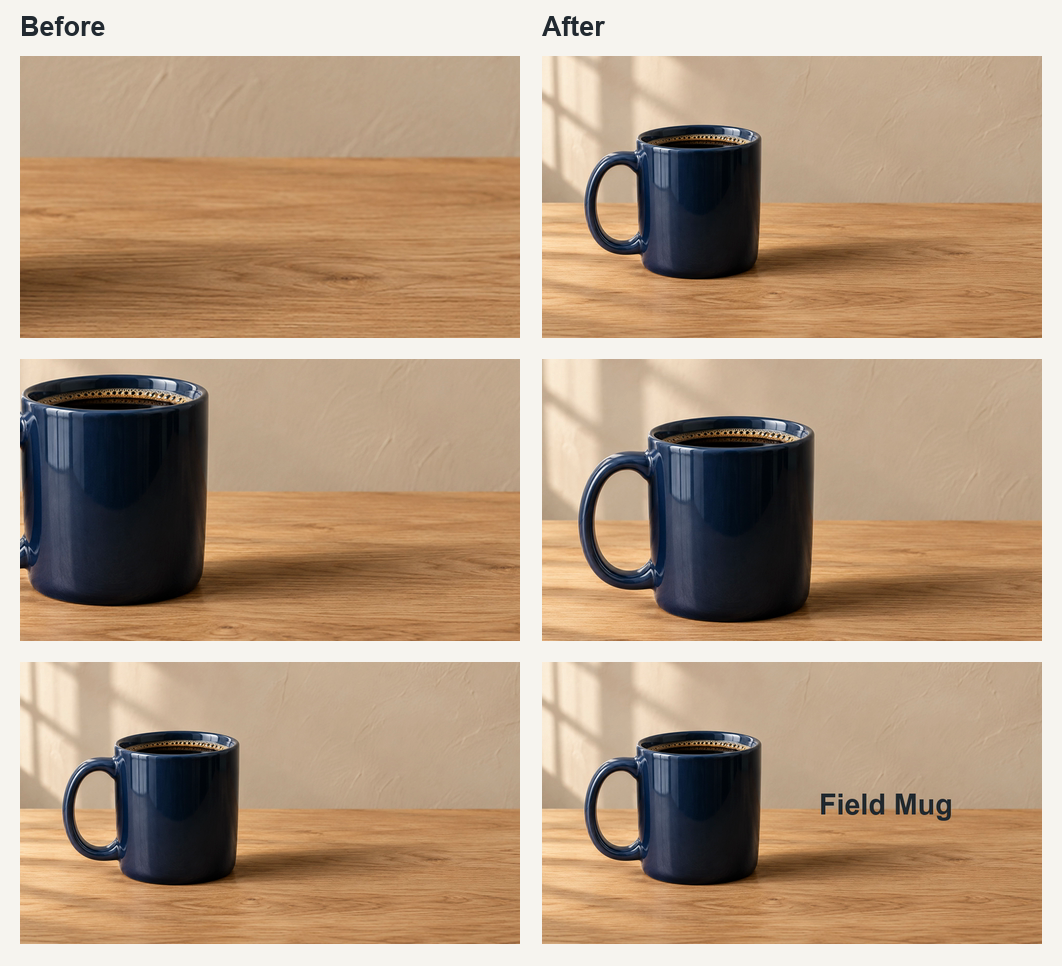
We made two cuts from one generated product photograph. Look at the handle in the middle row. Both edits use the same mug. A wider crop brings its handle back into view. The other two changes are an earlier view of the product and a title placed beside it.
| Part of the cut | Before | After |
|---|---|---|
| Opening | Empty table | The first frame shows the mug. |
| Close-up | The edge of the shot cuts off the handle. | A wider crop shows the whole handle. |
| End title | The product has no on-screen name. | “Field Mug” sits to the right, clear of the cup. |
Match the editor to the footage
For interviews, start with an editor that lets you select words in the transcript and play the surrounding audio. For a software demo with separate narration, look for a timeline that keeps the tracks editable. For a finished clip that just needs a label, Pexo’s Add Text to Video tool takes the exact wording, position, and time the text should appear. Check the exported clip on a phone to see whether the text covers the product.
The file you receive matters as much as the first preview. A finished MP4 can be ready to send, while editable layers are useful when the client changes a line and needs it back the same day. Ask where the project will live, which tracks remain accessible, and how to pass it to another editor before committing to the workflow. Check project transfer with a small test if the next editor works in a different application. Keep the original recording and approved version so you can always check what moved.
A brief you can give an editor
“Open when the mug is in frame. Keep the handle visible in the close-up. In the final shot, add ‘Field Mug’ to the right of the cup. Send the preview and, if the editor supports it, the timeline.” For a real product, attach the approved reference photo so the editor has something to check the color and shape against.
Watch the first cut once for meaning and again for details. On the first pass, follow the action at normal speed. Does the next shot make sense where the cut lands? On the second pass, check the product against its reference, then review the captions, names, and any on-screen claims. Save a separate caption track when the destination supports it.
Can another editor change the result?
Open the saved project and try one of the changes somebody may ask for. Can you swap the close-up, extend a shot, or move the product title without rebuilding the sequence? Keep a note of which takes were used and which text was added during editing. With an editable timeline, the next person can make the correction and compare it against the approved version.
Save naming and version details with the project. If you first approved a horizontal version and later made a vertical one, label the two and keep their captions with them. When a review note says “put the longer pause back,” you need to know which cut it refers to and where to find that material. That is where an editable draft earns its keep after the agent has saved you time sorting the original footage.
What happens when you request a revision?
A simple correction can be a timeline change, a new transcription, or a generation request. Those operations may have different costs. For example, invideo’s credit rules distinguish supported timeline work and exports from AI generation, transcription, paid stock, and work by its own built-in agent. When a client is likely to request one revision, estimate the specific change you would expect, such as swapping one shot or correcting one caption. Use the result and the price of that first small assignment to decide how much of the next project to delegate.
If your starting point is a script or a product photo and you still need footage for most of the video, compare AI video agents that can generate those scenes.
Frequently asked questions
What is a video editing agent?
A video editing agent does supported editing work from a brief and supplied footage. Its tasks can include finding clips, cutting pauses, assembling a sequence, and preparing captions. The output depends on the tool.
Can editing fix mistakes in AI-generated footage?
Editing can improve pacing, framing, and text legibility. If the product, label, or movement is wrong inside a shot, use an approved replacement or generate that shot again.
Will I get an editable project or an MP4?
Check before uploading. Some tools save their edits to a timeline, others export separate clips or one video, and each editor has its own project export options.
What should I put in a video editing prompt?
Describe the audience and destination, target duration and aspect ratio, what the video must show, which footage may be used, and the format you want back.
Can I correct captions after export?
If you have a separate caption file and the destination accepts it, update the affected cue. Text embedded in the picture needs a new video export.
Does AI video editing always use credits?
Pricing depends on the tool and the operation. Check the cost of clip selection, generation, transcription, and any revision separately from the export entitlement.