Start with InVideo when your script is approved and you need direct control over individual sentences or clips. Start with Pexo’s product ad workflow when your only finished asset is a product photo and you need a sequence built around it. The first revision usually tells you which kind of control matters. A client who supplies an exact shot needs a clear replacement control. A seller who needs an opening shot from a still image needs a way to generate one.
What each tool puts in your hands
| What you need | InVideo | Pexo |
|---|---|---|
| Keep approved narration | Start from your own script and edit it by sentence | Supply approved wording in the brief and check the generated narration against it |
| Change one visual | Select a scene and replace its media, including with an upload | Ask for a revised shot and specify what must stay the same |
| Use a product photo | Upload it as your own media and put it in the relevant scene | Start with the photo in the dedicated product ad creator |
| Edit footage you already own | Use the timeline to adjust timing, audio, or the order of clips | Request a different scene and check which project controls the chosen workflow provides |
| Export a clean copy | InVideo documents free watermark-free export for manual editing. Built-in AI usage has its own charges. | Pexo’s credits guide lists watermark-free exports with a subscription. |
| Compare entry monthly plans | Starter at $20 per seat per month with 400 credits per seat | Pro at $30 per month with 3,000 base credits. The pricing page also showed 1,800 promotional credits. |
We checked the published US dollar plans and the vendors’ workflow documentation on November 21, 2026. The lunch bag below is an original reference for a repeatable trial. Use your own export and usage history to judge how long a job takes, whether the product looks right, and how much the accepted video costs. InVideo’s manual editor and credit rules · Pexo’s subscription and credit rules
For approved copy, follow the sentence through the edit
Many video jobs begin after the writing is over. A training team might have approved the words for a product walkthrough, and the screen recording might already show the correct buttons. In that situation a plausible rewrite creates extra work. InVideo documents a “Use my script” route. Paste the approved text into that flow and set preferences for elements such as media and subtitles. A good first check is to read the opening, an unusual product name, and the closing instruction against the approved copy. InVideo’s guide to using your own script
A script change and a footage change also take different routes. In the script editor you can split or merge sentences, delete a sentence, or add a pause. To replace an incorrect visual, select the relevant media and choose another clip or your own upload. If a release manager sends you the final screen recording on Friday, that is a concrete replacement you can make without asking the system to imagine the screen again. Script editing controls and media replacement instructions
The next question is who will make the last change. If the person doing final review likes to line up a cut with the end of a spoken phrase, InVideo also lists a timeline editor on Starter. Check the project you are handing over with that person. A final video file is enough for someone posting a finished asset. An editor who expects to revise next month’s prices needs access to the original project, the replacement assets, and the same editing surface. InVideo plan and editor details
For a single product photo, look at the shots you still need
A packshot gives you a subject, but little footage. Somebody has to choose the opening, find a reason for the camera to move, decide what the narration can truthfully say, and keep the product recognisable through several angles. Pexo’s product ad page describes a flow that starts from an image, then generates the script, visuals, music and captions. It also lists landscape, portrait and square versions with compositions generated for each ratio. This fits a seller who has catalogue photos and needs a first concept to show a buyer. Pexo’s product photo to ad workflow
With a photo-led ad, the first approval is about the object itself. A bag with a single black handle needs to keep that handle even in a close-up. A front view says little about the back of the bag. If there is a real pocket, label, or closure on the back that the customer will see, add a reference photo of it or choose a shot the available image supports. One extra angle from a phone can be a better use of five minutes than repeatedly asking a generator to guess.
Pexo’s video agent describes planning and revising scenes through a conversation. Ask for a change tied to one scene, then review the shots immediately before and after it. That can be a comfortable way for a shop owner to direct a video. A post-production team that needs to move a cut by a few frames or deliver separately editable tracks should establish what the handoff includes before choosing the workflow. Pexo’s video agent and scene revisions
Try one change with the same reference photo
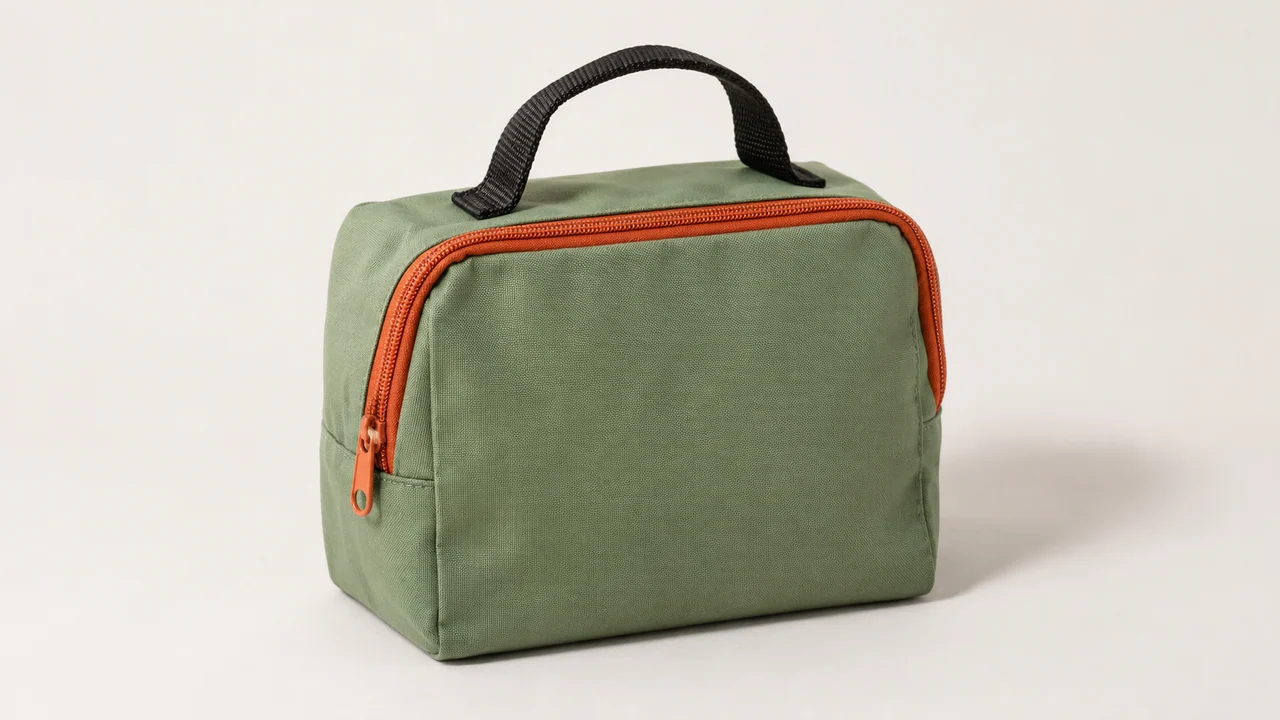
Download the full lunch bag reference. Use the same image and a vertical 9:16 canvas in both projects. Ask for a short product ad that opens on the bag, cuts to the orange zipper, and ends with the bag and the single black handle in view. Use the same two spoken lines in both projects: “Meet the lunch bag. Pack your lunch.” Keep the same words in the captions and compare them against the export. Save the first version and record any manual changes needed to reach it.
For the revision, move the zipper close-up to the opening and keep the closing frame and its line. Review both exports with the sound off first. Can you read the caption on a phone? Is the single black handle intact? Then listen for extra claims and check them against the photo. A claim about how long the bag keeps food cold would need a source of its own. Use the same approval criteria for both exports.
Keep a note of what you did yourself. Replacing a scene by hand may take little time and give exactly the result you need. A generated close-up may be worth an extra attempt if no such shot exists in your library. Count the attempts and credits for the accepted version, including any second export you would actually deliver. If your work usually starts with finished footage, use that footage for a second trial. The AgentsBench guide to video editing agents explains what to look for when the job is cutting material you already own.
What the entry plans actually cost
InVideo lists Starter at $20 per seat per month on monthly billing, with 400 credits per seat and Lite agent access. The annual selector can show a lower monthly equivalent. Check the billing term before you budget a one-off project. Generated footage uses credits according to model and settings. Compare that charge with an edit using footage your team already owns. InVideo plans · InVideo credit usage
Pexo showed Pro at $30 per month with 3,000 base credits and a time-limited bonus of 1,800. The plan lists watermark-free output and commercial use. Budget recurring work against the base allocation and check the expiry of any trial or promotional credit. Compare the actual charges for one deliverable on each platform, using that platform’s own units and plan terms. Pexo plans
For a real budget, list the deliverables first. A designer making one landscape training video with supplied footage will spend differently from a seller who needs three original ad openings and two aspect ratios. Track which generation requests consumed credits and which changes took the reviewer’s time. The plan with the lower subscription price can still be the wrong purchase if the operator has to work around its editing model every week. For a first trial, choose the tool whose normal revision process looks most like the feedback you already receive.
If several people sign off on a video, include the person who has to reopen it next week. Give them the project and the approved export, then ask for a small change such as a new closing line. Note whether they can find the right version, preserve the voice and visuals, and return a replacement without your help. That short handoff can settle the purchase even when everyone likes both first drafts.
Frequently asked questions
Which tool should I try if the voiceover script is already approved?
Start with InVideo’s own-script flow. Check the wording, pronunciation of product names, and the scene attached to each key sentence before handing over the first version.
Can I make a Pexo product ad from just one photo?
Pexo documents this as a supported starting point. Choose a first shot and a product detail visible in the photo, and supply another angle if you want the ad to show a feature that is hidden.
Are 400 InVideo credits equivalent to 400 Pexo credits?
Each vendor prices its own actions and models. Record the credits used on each platform to make the same deliverable and include the revisions required for approval.
What is a good first revision to test?
Ask to move one close-up to the opening while keeping the final shot and its wording intact. This tests a common change and gives you two unchanged elements to inspect.
Which one produces a more accurate picture of my actual product?
Use your own photos and compare the same visible details across the first version and a revision. The reference brief in this article gives you a repeatable check. Accuracy for a particular product needs its own render.